Better UI
♠ documentation ♦ forum post ♠
Onboarding
A setup wizard helps you setting up Better UI for your project correctly.
Examples
Several Examples are included and can be previewed online:
♠ Overview - Several features packed into one scene.
♠ Navigation - Showcasing the Better Navigation Module (mainly targeting gamepad).
♠ "Find the Ghost" - About masking objects on static positions and animations.
♠ Resolution Tracking - Simple scene to show Resolution change detection.
♠ Anchor Animation - How to dynamically animate with the Anchor Override component.
♠ Accessibility Mode - Switch between two layouts by clicking a toggle.
Resolution Independence
Create UIs working on any resolution. Use the Snap Anchors tool to easily set up the anchors correctly. Use the "Make Better" workflow to convert your components to their "Better UI" version. Variables which contain sizes of the object (like font size) are resized with the resolution - and you have full control over the way it adjusts such size values.
Responsive Design
Define orientations (Landscape / Portrait), screen size ranges, aspect ratio ranges and / or special screen types (like touch screen) you want to support. You can have different positions and sizes or certain values of your UI elements for each defined screen configuration. A smart fallback logic allows you to leave out screen configuration settings in your elements to keep your effort at a minimum.
Gamepad Navigation
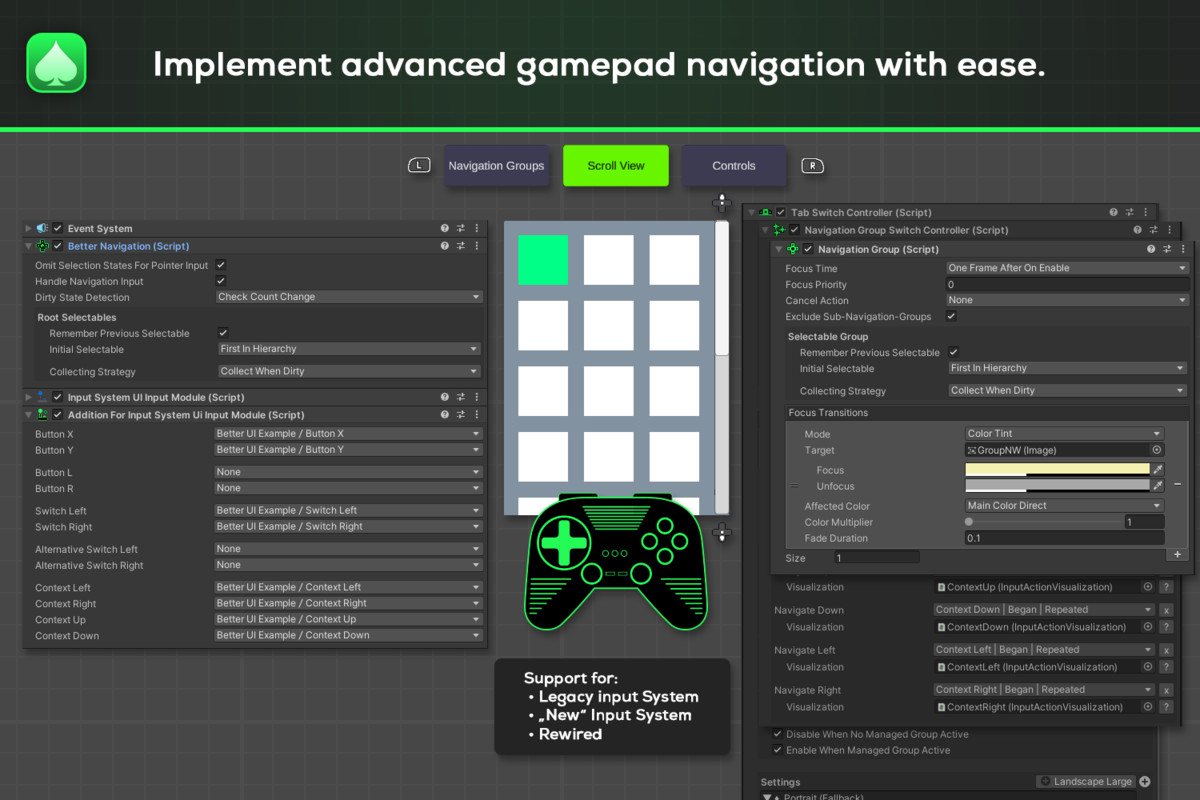
Use Navigation Groups and other handy components to manage your UI flows for gamepads. Bind additional gamepad buttons to certain controls. And get rid of the selected state when using the mouse or touch as input.
Supporting the legacy input system, the "new" input system and Rewired (and an easy way to integrate other input systems as well).
Optimized Workflow
With the Make Better workflow you can convert UGUI components to their "Better" pendants with two clicks. References to these components are converted as well. So, it just works without worries.
Several tools are a great help to make a great UI.
The Snap Anchors tool converts constant positions and sizes into relative anchor positions. You can do that for as many elements as you select with one click.
The Smart Parent tool allows you to move an object while leaving its childs on their visual position. Also allows to snap the parent to the bounds of its childs.
The Align & Distribute tool helps you moving your UI elements to the right position.
The Pick Resolution tool let you change the resolution of your game window with a single click. It also allows to simulate certain screen configurations for previewing your responsive design.
Better Transitions
Instead of defining only one transition per selectable, you can define as many transitions as you like and affect any object in the hierarchy. In addition to the normal transition types there are also some special transition types.
The "Better Toggle" has additional transition options for changing between the on and off state. With this and the special "Object Activeness Transition" you can easily create things like tabs.
Dynamic UI
Create animations easily with the straight forward Location Animations component. Control the anchors of your objects by objects somewhere else in your Hierarchy with the Anchor Override (which can also be animated). This enables you to prevent moving objects with their mask. Resize your element variables based on the size of a parented object instead of the screen with the Override Screen Properties component.
Extra Options
Some components can do a lot more than the original UGUI components.
The Better Image allows to make horizontal or vertical gradients. There are also some pre-defined Materials like Greyscale or Hue Saturation Brightness. These are optimized for extensive use and can be changed via transitions (the Better Raw Image has similar options).
The Better Content Size Fitter allows you to define a minimum or maximum size as well as a padding added to the size. It also has the option to check the size of another (child) object in the hierarchy istead of itself. All this is of course resolution independant and ready for responsive design.
Text Mesh Pro Suppot
All UGUI components of text mesh pro (TMP UGUI, TMP Input Field, TMP Dropdown) have "Better" versions. They are included as a package. So, you can simply extract it if you are using TextMesh Pro.
Support
If you don't know how to start, you can check out the documentation. If you have additional questions or experience unexpected behavior, feel free to leave a comment in the forum post. Of course, you can also try to understand the code behind by checking out the source code. It is included in this package.
Release Notes
============================
Change Log for Better UI 3.2
============================
*Improvements*
- No Warnings in the console because of OnValidate code anymore (Better Offsetter, Anchor Override, Size Delta Sizer and Transform Scaler)
- Added "LastValidNavigationInfo" to input detectors to be able to see the last used input (handled in the base class, so, nothing to do for custom implementations).
- Improved Better Navigation Debug Info window (more information, improved layout)
- All example scenes checked for improvements. Added explanation text and fixed minor issues. Provided WebGL builds for all of them.
*Fixes*
- Reset of static fields on begin play (Allows to disable domain reload in the player settings)
- Compile Error in Unity 6.3 fixed
- Size Change Tracker has thrown an exception when "Everything" was selected.
- Closing the setup wizard without using it caused it to ask for "reopen next time" again and again
*Notes*
- The owner of Better UI changed: Thera Bytes sold the rights for the asset to Salomon Zwecker, the creator of the asset.
For backwards compatibility reasons it will still use the TheraBytes namespace and folder. However, it is now part of the "there-it-is" brand.
============================
Change Log for Better UI 3.1
============================
*Features*
- Setup Wizard - Possibility to move root folder of Better UI
- Global Applier - Global event for navigating between selectables with Gamepad or Keyboard
- Resolution Monitor - Option to auto-create IngameResolutionMonitor in builds
*Improvements*
- Screen Config Properties - Small mode in inspector (default - can be switched to legacy bigger UI with more options)
- Setup Wizard - Skip-Wizard-Dialog also shows when clicking "X"
- Setup Wizard - Example Page has a better indication what is being selected for installation / removal
- In Scene View: Overlay text indicating if a screen configuration is currently simulated or if the Smart Parent window's "detach children" option is activated
*Fixes*
- Better Navigation: Input Detector for New Input System - navigation by buttons / keys works now (along with the analog stick)
- Better Navigation: Input Detector for Legacy Input System - no compile error when UIElements package is not installed
- Better Navigation: Tab Switch Controller - update current tab when using pointer device - this allows a seamless switch between mouse and gamepad input devices (note that this is implemented using onValueChanged- or onClick events. It stops working if you remove all listeners from a tab)
- Better Navigation - Fixed several navigation issues regarding switch between mouse and gamepad as well as trigger selection for a selectable multiple times
- Resolution Monitor - Resolution Monitor updates when play mode changes - now also in unity 2018.1+
============================
Change Log for Better UI 3.0
============================
*New Big Module*
- Better Navigation - Allows you to set up gamepad navigation in a smart way.
*Features*
- Global Applier - Allows to invoke the same event for all BetterButtons or Better Toggles; Allows to overwrite a certain Size-value for all sizers of the same type.
- New Control: Resize To Screen Area - Can change the coverage of the Rect Transform to the safe area or notch.
- New Control: Better Rect Mask 2D - Makes Rect Mask 2D resolution independent
- New Control: Better Border - An effect like "Shadow" or "Outline" but with more options and the option to use different material properties on the effect (allowing colored borders)
- New Control: Better Toggle Group - In combination with Better Toggles, it works more reliable than the normal Toggle Group
- Better Image / Better Raw Image: Introduced "Flipping Mode"
- Better Scroll Rect - Keep selection in view when navigating with gamepad
- Better Aspect Ratio Fitter - Option "Layout Mode"
- Better Slider - "Step Size Over Time" and "Step Size Scale Factor" fields define how much the slider value is being changed when controlled by gamepad
- Better Slider - "Move Handle Pivot With Value" make it easier to restrict the control area of the handle
- Better Grid Layout Group - option to keep the aspect ratio of cells when "Fit" is checked
- Size Modifiers - Warn users when Canvas is in World Space with option to remove senseless modifiers
- RectTransform got some extension methods that are used by Snap Anchors and Smart Parent tools and can also be used during runtime.
- Shortcuts for snapping anchors and navigating in the hierarchy added (default bindings on Num-pad)
*Improvements*
- Distribute Tool allows "reverse hierarchy" order now
- Anchor Override - more reliable updates (no ghosting; postponed initialization, if UI not ready)
- Better Locator - no immediate "dirty state" when opening prefabs
- Better Image / Better Raw Image - Added Sizers for "Raycast Padding"
- Better Scroll Rect - "Scroll Sensitivity" is a size modifier now
- Value Dragger - can be controlled with gamepad now
- Value Dragger - expose "Interactable" field in inspector
- Convert options in context menu (convert to Better Button / to Better Toggle or Downgrade to Selectable)
- Interaction Area automatically adds required Canvas Renderer
- Reduced number of implicit casts in helper methods
- Tools look and feel improvements (Snap Anchors, Align & Distribute)
- Tranistions store their current state; Helper.SetTransitionStateValue(...) added to easily change transitions states
- Fully qualified certain type names (like "System.Environment") to avoid any potential problems on customer's projects
*Fixes*
- Better Toggle - transition to correct state on enable (previously it always transitioned to "Normal")
- Location Animation - fixed wrong rotation with euler angles
- Better Content Size Fitter - Skip layouting when inactive
- Better Axis Aligned Layout Group - Don't override Screen configurations
- Better Axis Aligned Layout Group - Rebuild layout more reliably
- Better Text Mesh Pro Dropdown - "Show / Hide Transitions" exposed in inspector
- SingletonScriptableObjects are thread safe now
- Used ResolutionMonitor.CurrentResolution rather than Screen.height / Screen.width as the latter are sometimes wrong in certain unity editor versions
*Breaking Changes*
- Better Aspect Ratio Fitters inside Layout Groups or Content Size Fitters may behave differently now after "Layout Mode" was introduced.
-> If the previous behaviour is desired, try to nest the Better Aspect Ratio Fitter in another object.
- Better Scroll Rect: The Scroll Sensitivity of your controls may be wrong after importing the new version.
-> You can globally set the scroll sensitivity of all your scroll rects with the Global Applier.
- You may see compile errors if you have assembly definition files and the "new" input system or rewired in your project.
-> Add the required references to the .asmdef files or remove the files.




Basic Information
- Latest Version
- 3.2 (03 Jan 2026)
- Publisher
- there-it-is
- Category
- Tools/GUI
- Size
- 2.2 MB
- Price
- €58.88
- Asset Rating
- ★ ★ ★ ★ ★ (43)
Extended Information
- Unity Versions
- 2019.4.41
- Render Pipelines
- ✔ BIRP ✔ URP ✔ HDRP
- State
- Published